Have a SHAREit tip you would like to share? Send it to support@hslc.org and we would be happy to “share it” on this page and in a future edition of the weekly Access PA News!
1. Setting Due Dates
2. Add Your IDS Number
3. Setting Email Notifications
4. Setting Holiday Dates
5. Using “Remember Me”
6. Retry vs. Unfilled
7. Using NA vs. N in Your Lending Policy
8. Complete Your Lending Policy!
9. Using SHAREit and VDX
10. Information Only Policies
11. Requesting Help
12. History Matters
13. Multi-Copy Requests
14. Password Management
15. Ship To Fields
16. Request Status: Complete
17. It’s Your Participant Record
18. Holiday Happenings
19. Request Types
20. Sort Limit
21. Request Status: Not Received
22. Shipping Labels
23. Using ILL to Support ELL Users
24. Lending Policy Check-Up Time
25. Statistics: Net Activity Report

It is important to keep in mind that while SHAREit comes with a default lending period of 35 days, which is indicated in the Participant Record’s Days to Return field, your library is able to change it to suit your needs. Make sure to complete your Lending Policy to set the appropriate default lending days for each format that your library lends. SHAREit will use the specified values to override the Days to Return value.
The link to your library’s Lending Policy is available along the top or bottom of the Participant Record.
Does your library use IDS, the Interlibrary Delivery Service of Pennsylvania? If yes, remember to add the IDS number for your library in front of your library’s name in the Ship To section of your Participant Record, e.g., IDS 123 Library Name.
Here’s how Penn State’s looks in their Participant Record:

Adding your IDS number ensures that other IDS libraries will be able to properly ship items to you.
Not a member of IDS? Learn all about it at www.idspa.org.
Access PA SHAREit will send you email notifications about both borrower and lender requests.
To set-up email notifications, log into SHAREit and select the Maintain Participant Record link located in the ILL Admin section of SHAREit. Next, select the URL Info link located along the top of the Participant Record. For each type of notification you’d like to receive, select Yes and enter the email address to which the notifications should be delivered. Only one email address can be entered per type of notification.
Borrower Notifications

Do you want e-mail notification for NEW Awaiting Approval requests only? If Yes, the library will receive e-mail notifications each time a request is placed for an item owned by the library (except multi-copy requests).
Do you want email notification for ALL borrowing status changes? If Yes, the library will receive email notifications each time there is a status change related to active borrowing requests.
Lender Notifications

Do you want e-mail notification for NEW lending requests only? If Yes, the library will receive email notifications on receipt of new lending requests.
Do you want email notification for ALL lending status changes? If Yes, the library will receive email notifications each time there is a status change related to active requests lent by your library.

The Holiday List section of the Participant Record allows you to set a date range indicating when your library will be closed and not able to respond to ILL requests. This prevents your library from appearing in lending strings, but you are still able to place requests. You don’t need to enter single holidays or long weekends, such as Labor Day, but will want to enter periods of at least a week so requests go to libraries that are open without the delay of “sitting” in your library’s Pending list for four days.
To enter holiday dates, open your Participant Record and select the Holiday List button at the top or scroll down to the Holiday List section.
Things to remember when entering dates:
- Dates must be entered in the format of MM/DD/YYYY
- Each period must have a start and end date
- Multiple date ranges may be entered across a row or down a column
- The dates will be deleted by the system after the end date
- The summer vacation period for schools will continue to be entered system-wide
When you go live with SHAREit and complete the Getting Started Checklist, you’ll see that one of the steps is to remove the start and end dates of 06/01/2015 – 12/31/2015. That date range was entered globally to ensure that a library would not receive requests if its records were loaded but training was not complete. Delete the dates when you start using SHAREit so that you’ll be able to receive requests if your records have been loaded, or so you’ll be ready for requests when they are loaded.
The “Remember Me” function on the Login screen allows SHAREit to save your login information so you don’t need to select your library or enter your username each time you log in on that computer.

If you are not prompted to save your password, you’ll need to turn that function on in your browser.
In Chrome, go to the advanced settings and check the box for “Offer to save your web passwords” under Passwords and Forms. In Firefox, the option to remember passwords is in the Security section under Options. If you use Internet Explorer, go to the Internet Options and select Settings on the Content tab.
Using SHAREit’s “Remember Me?” option plus your browser’s save password function will make logging in faster and easier for staff but should only be used if all staff members using that computer are trained and authorized to use SHAREit in your library.
When an ILL request is not filled during its first go-around through the lending string, it will end in the status of Unfilled or Retry for the borrowing library.
Why Unfilled? When SHAREit places the request in Unfilled, it indicates the item has not and will not be filled by a potential lender.
Why Retry? When SHAREit places the request in Retry, it indicates the system thinks the item could potentially be filled in a future attempt or retry. When re-sending a request, the system populates the lender list with those libraries it thinks might still be able to supply the item.
In both cases, SHAREit bases its decision upon the lender’s selected Reason/Condition for the original Will not Supply response. Lenders have either a) taken no action and allowed the system to automatically move the request along after 4 days or b) indicated they Will Not Supply. During the course of marking the request Will not Supply, they either used the default condition/reason of Omit Reason or selected a more appropriate condition/reason befitting this particular item.
If the condition/reason was terminal in nature (e.g., item is “lost”, item is “not owned”, item is “not lendable per policy”, etc.), the request will end in Unfilled, indicating no potential lender for this item owns it or can lend it.
If the condition/reason is retry-eligible/non-terminal in nature (e.g., library is closed, item is currently checked out, item is in bindery, etc.), the request will end up in Retry. This indicates at least one potential lender could possibly send the item at a future date, so a retry could yield possible fulfillment. In this case, all lenders who could potentially fill the request during a re-attempt are retained in the lending string (all others are removed).
How do you proceed with requests in Unfilled or Retry? In both cases, review the history notes to better understand why the item was not filled. For a Retry request, it may be enough to Approve-Send it after enough time has passed. For Unfilled requests, it is best to delete the request from your results list. If you still need the item, feel free to place a new request.
It’s important that the Lending Policy section of your library’s Participant Record is completed accurately so SHAREit knows what to do with requests for loans and renewals of different formats. The possible responses for Lend and Renew are Y, N, or NA. The Y response is easy – enter Y for Yes if you lend that format, and enter Y for Yes if you renew that format, along with the number of days for Loan Period and Renewal Loan Period (the renewal period can be different than the original loan period).
In this example, the library will lend books for 35 days but the renewal period is 21 days:

But what about N and NA? What’s the difference?
- N, or No, means your library collects that format but does not lend it via ILL.
- NA, or Not Applicable, means your library does not collect materials in that format.
For either N or NA, be sure to change the Loan Period 0.
In this example, the library does not collect music on cassette. It collects music on CD but does not lend that format via ILL:
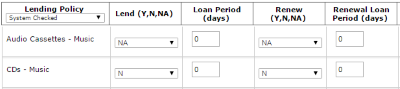
If you lend a particular format but do not allow renewals, select Y for Lend, enter the Loan Period in days, then select N for Renew and enter 0 for the Loan Period. If a borrowing library requests a renewal via SHAREit for an item that you lend but don’t renew, the renewal will be automatically rejected. The request history will show the reason for the rejection as “Notes: Policy error: Renewal not allowed for this item” so the borrower can immediately see why the renewal was rejected.
This library will lend dissertations and theses for 21 days but will not renew them:

If you do lend a particular format but are not always able to renew the items, the best practice is to indicate Y for Renew and enter the number of days you will renew the item for, if possible, in the Renewal Loan Period. If your library receives a renewal request (lender requests with a status of Renew Pending or Renew/Overdue), you always have the option to reject the renewal. Remember to practice good ILL etiquette and provide a reason for the rejection so the borrowing library understands and can pass that information on to their borrower if asked.
What is the Lending Policy and why is it important? The Lending Policy is the section of the Participant Record that allows you to enter the loan period for each format your library lends via ILL. It is important because if you don’t complete it, SHAREit will use the default setting for ILL requests that come to your library. That’s probably not what you want!
To open your Lending Policy, select Maintain Participant Record from the ILL Admin menu on the left and click the Lending button at the top of the page:

or select the Lending Policy link at the bottom of the page:

A new Maintain Lending Policy window will open. Verify that there is a check in the box before the statement “Use my library’s lending policies to determine if my library should receive requests of specific item types. Applies only to ‘System Checked’ items.” Also verify that the Lending Policy drop-down menu is set to “System Checked” (rather than “Not System Checked”):

For each format listed, select whether or not your library lends that format, the loan period, whether or not the format can be renewed, and the renewal loan period.
Some points to remember when completing your Lending Policy:
- For Lend and Renew, select Y for Yes if you will lend that format, select N for No if you collect but will not lend that format via ILL, and select NA for Not Applicable if you do not collect that format. (For detailed information on using N vs. NA, see SHAREit Tip #7)
- Selecting Yes for Renew does not mean renewals will be automatic. Just as you can say “Will not Supply” for an ILL request that you cannot fill, you can choose to reject a renewal request if you are not able to accommodate it.
- The Loan Period takes precedence over the Days to Return setting for due dates. You can always adjust specific due dates by clicking on a title in your Pending list and entering a Due Date different than the default for that format.
- When setting Loan Periods, remember that the shipping time, to and from, is included.
- The last column for Exceptions and Comments is for informational purposes only. SHAREit does not use that information when determining how to handle an ILL request, but other libraries can see it when looking at your library’s Participant Record using the Search Library Information function.
- You may choose to enter your lending policies for “Not System Checked” materials, but SHAREit does not use “Not System Checked” policies when processing ILL requests. Other libraries can see that information if they look at your library’s Participant Record.
- Don’t forget to click the Submit button to save your changes! You’ll see the message, “Successfully updated Lending Policy record!” as confirmation that your changes were saved.
For the rest of this year, Access PA libraries will continue to log into both SHAREit and VDX for interlibrary loans as training and record loading continues. Here’s a quick guide on which system to use and when, depending on if your library is trained and enabled to use SHAREit and if your records have been loaded into SHAREit yet.If you are:
- Trained and enabled to use SHAREit and records loaded:
- Place new ILL requests in SHAREit. If you can’t find an item in SHAREit, you may need to place the request in VDX if it’s owned by a library that has not had their records loaded yet.
- Fulfill requests for new loans in SHAREit but continue to check VDX for requests from libraries not yet using SHAREit.
- Trained and enabled to use SHAREit but records not loaded:
- Place new ILL requests in SHAREit. If you can’t find an item in SHAREit, you may need to place the request in VDX if it’s owned by a library that has not had their records loaded yet.
- Fulfill requests for new loans in VDX. After records are loaded in SHAREit, see #1 above.
- Not trained but records loaded:
- Continue to use VDX for all ILL processing.
- After your library is trained and enabled in SHAREit, see #1 above.
- Not trained and records not loaded:
- Continue to use VDX for all ILL processing.
- After your library is trained, see #2 above and after your records are loaded you’re ready for #1 above!


Here’s a list of the policies and how they are used:
Lending Policy
There are two different types of Lending Policies: System Checked and Not System Checked.
 System Checked is the default and is the most important policy section because SHAREit uses it to determine if you lend different formats and, if so, for how long. See Tips #1, #7, and #8 for more details.
 Not System Checked lists material types such as Entertainment DVDs that SHAREit cannot check for when processing ILLs because the information is not in a standard format in the MARC record. You can choose to complete this section, though, so other libraries can see it when looking up your library’s policies. Click the arrow next to System Checked to switch to Not System Checked.
The Shipping, ILL Acceptance, and Copies policies are not used by SHAREit, but other libraries can see this information when looking up your library’s policies:
The Shipping Policy allows you to specify what shipping methods you use and if you use them for certain material types.
The ILL Acceptance Policy allows you to specify by which methods, other than SHAREit, libraries can use to send requests to your library.
The Copies Policy is where you can specify if you charge for copies from different formats (e.g., microfiche) and how you will provide them (mail, fax, or e-mail).
To see another library’s policies, select Search Library Information in the ILL Admin menu, enter the library’s name, part of the name, or code, and click the ILL Policy Link button at the top of their record.
Have a question about a request you placed? Wondering what to do with a request in a certain status? Don’t know why you can’t change a status to a different one?
Send your question to support@hslc.org. To help us help you, please provide as much information as possible, including:
- the request number(s)
- the title(s)
- whether you are the borrower or lender
- what you were trying to do and what happened
- attach a screen shot or snip if that can help explain the problem
- the name of your library
If your question concerns a status or status change, don’t forget to check the Borrower’s ILL Status Definitions and Lender’s ILL Status Definitions – they list the various statuses and possible actions and outcomes. Those and all of the Access PA SHAREit documents are posted on POWER Library for Librarians.
Do you wonder why a request ended up in a specific status and not another? Do you have a request in the status of Retry that you don’t know what to do with it? Check the request history to find out!
To see the request history, open the Request Manager and select any status that is a link, indicating there are items requiring action. Click on a title in the status list and scroll down to “History Information.” The full history of the request is listed in reverse order, with the most recent action at the top of the list.
Here are 2 examples you may see in a request history:
Example 1:
Change: 9/16/2015 10:36:19 AM, Automatic Approval
Notes: Created from record no. ACCESSPA_UDB:92487 by staff Request 3 of 10 for this item.
Explanation: A multi-copy request for 10 copies was placed.
Example 2:
Change: 8/20/2015, Deadline Expired
Notes: Forwarded to next lender PABCL by system during midnight processing.
Explanation: A library did not respond to a request within the 4 days allotted, so the deadline for Days to Respond expired and the request moved to the next potential lender.
Tip: Move requests along faster by responding “Will not Supply”, with a reason, if you can’t ship an item in your Pending list.
Always make sure to check the history of items that are in the status of Retry in your Borrower Requests before selecting Approved – Send, which will resubmit the request to the same string of potential lenders. Look for the reason the libraries could not supply the item. Reasons such as “In use, on loan” or “On hold” may indicate that, if a few weeks have passed, the item may be back on the shelf. For reasons like “Lost” or “Policy Problem,” though, it is unlikely that resubmitting the request will result in the potential lender being able to supply the item. In that case, change the status from “Retry” to “Delete” and either place a new request or notify the patron that you are unable to borrow the item.
Still stumped by a status or something in a request’s history? Send your question, along with the request number, to support@hslc.org or join a Drop In and SHAREit session and we can look at the request together!
Note that reverse order is the default display for the request history. You can change it to appear in chronological order in your Participant Record by changing Display History Information from Newest First (most recent action at the top of the list) to Oldest First.
If you need several copies of an item – for a book group or special class project – you can easily place a multi-copy request in SHAREit.
To do so, search for the item in SHAREit and make sure there are at least as many holdings attached to the record as the number you need to request. Then click on the cover art to open the full record. Scroll down to the Staff Function box on the left and select Multi-Copy – it’s the last option in the list.
There will be a slight delay as SHAREit searches for lenders, then the ILL Request form will open. Make sure to:
- Change the Need by date if necessary
- Enter the Patron Last Name and Patron Contact 1 information (you can just enter “Book Club” or another identifier like “AP English” if you’d like)
- Enter the Number of Copies Needed (over 1 creates multiple requests) – this step is very important. A default of 1 is already entered, so if you don’t change it SHAREit will only request one copy.
- Click the “Submit” button to generate requests for that number of copies. Each request will go to a different lending string so that no library will receive more than one request for the item.
SHAREit makes it easy to recover a forgotten password and easy to create a new one!
If you forget your password, click the Login button and then click Forgot Your Password? Enter your SHAREit username in the field that opens and click Send to have your password sent to the email address set up for your library in SHAREit.

To change your password, log into SHAREit and select My Account, located in the upper right:

Create a new, unique password using these criteria:
- a combination of up to 20 alpha and numeric characters may be used (no spaces)
- the only special character allowed is the underscore: “_”
- passwords are not case-sensitive
Enter your new password in the *Password field:

Click Save then OK in the pop-up confirming that your Profile – new password — has been saved.
One of the most important steps to do in your Participant Record is to review and correct, if necessary, the Ship To information for your library. This is part of the Getting Started Checklist and you’ll find full information on p. 5 of Access PA SHAREit ILL Admin: Participant Record. (#1 and #13, respectively, in the list of SHAREit documentation.)
- Ship To Name: Include your IDS number if you have one as that makes it easier for other IDS libraries when shipping items to you.
- Ship To Address 1 and Ship To Address 2: Include a physical address (for libraries that ship UPS). You can add a PO Box number if you use one.
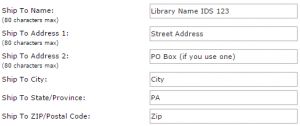
The Ship To fields control the library information that is included on ILL Requests and Shipping Labels.
The Complete status is listed as one of your Action Items in the Request Manager.
- If you leave the request in Complete, it will be automatically deleted after 5 days.
- You can open the list of Complete requests and change the Status to Delete. The request(s) will be flagged with a trash can icon and deleted during overnight processing.
If your library is the Lender
The Complete status is listed under Items awaiting trading partner response.
- The request(s) will be automatically deleted after 5 days.
Question: What is your Participant Record?
Answer: It’s where you manage your library’s account in Access PA SHAREit. It is your responsibility to:
- Complete the Participant Record after your library has been trained and is enabled in the live (production) system.
- Keep your Participant Record updated as necessary.
The Getting Started Checklist points to the sections of the Participant Record that must be completed before your library uses SHAREit for ILL. Use the Participant Record as a guide when completing your record – it’s designed to let you know which fields are your responsibility, which fields are system settings and not to be changed, and the fields you can ignore because they are not applicable to Access PA libraries.
The holidays are coming, so make sure your library is ready by updating the Holiday List in your Participant Record.
If your library will be closed for at least a week, enter the date range to indicate that you will not be able to respond to ILL requests. This prevents requests from sitting in your Pending queue for four days. If a request would normally have gone to your library, it will be recorded in the request history as“Lender PXOXO closed – skipped. Try again after Dec 31.”
The dates will be removed by the system after the end date and your library will receive requests again.
For details on the Holiday List, please see SHAREit Tip #4.
There are two Request Types used by Access PA in SHAREit: Returnable (loan) and Non-returnable (copy).
Returnable (loan) is the default for on the ILL Request for items that will be returned to the lending library – books, audiobooks, DVDs, etc.

Non-returnable (copy) is the default when requests are places for items that will not be returned, such as copies of articles from serials (items cataloged as newspapers, government publications, periodicals, etc.).

The Request Type affects how SHAREit treats items when the borrowing library marks them Received:
- Returnable (loan) items are left in the status of Received until the borrower is ready to return them and changes the status to Returned or requests a renewal.
- Non-returnable (copy) items are not intended to be returned. When they are marked Received, they will immediately be put in the status of Complete because that is the final action for that ILL transaction. Items in the status of Complete will be deleted after 5 days (the borrower has the option to mark them to be Deleted during the next overnight processing).
As the Lender, if you are able to provide the requested material, please be sure to mark it Shipped.
NOTE: If you open the Lender’s Full Record Display (to change the due date, for example) and change the status to Shipped from that screen, be careful that you don’t inadvertently select Shipped (non-returnable). That option is only available on the Lender’s Full Record Display and should never be used for items you want returned to you library – it will force a status change to Complete when the borrower marks it Received. Because Complete items are deleted from the Request Manager after five days, this could result in requests seeming to disappear or be lost!
Have a tip? Send it to support@hslc.org and we’ll “share it” in a future edition of the Access PA News!
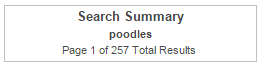
The default sort for search results is Sort by Relevance, but you can select a different option using the sort menu in the upper right of the search results screen.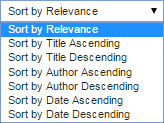
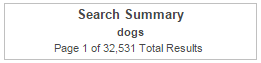
There is a limit though. Results will not be sorted if there are greater than 10,000 results. The number of results is indicated in the upper left of the search results screen.
In these examples, the results of a search for “dogs” cannot be sorted as there are more than 32,000 results, but a search for the more specific term “poodles” can be sorted as there are fewer than 10,000.
Why do some requests go into the status of Not Received? The Not Received status means that the requested item was shipped but the 14 days to supply have passed and it has not been marked Received.
If your library is the Borrower
The Not Received status is listed as one of your Action Items in the Request Manager.
- Mark the request Received when you receive it.
- Mark the request Lost and contact the Lender. Note: once an item is marked Lost, it cannot be undone and will stay in that status until deleted by the Lender.
If the request was received from a library using ILLiad, an external ILL protocol, you’ll see three additional options if you click on the title to open the full request record:
- Repeat Last Message – request the system to resend the last message if you believe one was sent but not received
- Send Status Query – permits you to ask for confirmation of the current status
- Send General Message – permits you to add text to the History Notes field and send it to the Lender without changing the status of the request.
AccessPA libraries using ILLiad are listed at: http://power2016.ivygroup.com/librarians/statewide-catalog/illiad-libraries/
If your library is the Lender
The Not Received status is listed under Items awaiting trading partner response. If necessary, you can change the status of the request.
- Mark the request as Lost. Note: once an item is marked Lost, it cannot be undone and will stay in that status until deleted by the Lender.
- Mark the status as Recall to alert the Borrower that the item must be returned as soon as it’s received.
- Mark the request Check in if the Borrower has returned the material but had failed to update the status of the request.
- Mark the request as Not Received / Overdue if item is due back and the Borrower has not updated the status or notified you that the material was never received.
Use Maintain Shipping Labels (in the left ILL Admin menu) to print shipping labels.
If your library is the Borrower, shipping labels are available to be printed after a request is marked Returned.
If your library is the Lender, shipping labels are available to be printed after a request is marked Shipped.
The default view when you open Shipping Labels is to include Both Shipped and Returned labels that have not been printed yet. The B or L column indicates if you are the Borrower (returning items) or the Lender (shipping items). You can select to include only shipped or returned items in the list.

The default is to print Consortium Labels – they include the borrower’s and lender’s shipping information for your convenience. They are intended to be included with the item when it’s shipped, so the lender can use the Delivery section as a label on the package, and the Borrower will have the Return information readily available when it’s time to return the item.
If you need to reprint a label, change the View option from Unprinted Labelsonly to Printed Labels Only, select the label(s) you need to reprint, and select Format to Print.
This week’s SHAREit tip comes from Karen Hornberger, Library Media Specialist at Palisades High School in Kintnersville, Bucks County. Faced with both the need to provide reading materials in multiple primary languages to English Language Learners (ELL) and the ever-present challenge of a limited budget, Karen has found that Access PA has been key in meeting the needs of ELL students.
Read Karen’s blog post to find out how she uses the SHAREit search features to locate non-English-language materials for her students: Using Interlibrary Loan Services to Support ELL Populations.
Completing your Participant Record, including the Lending Policy, is one of the first things libraries new to SHAREit do when starting to use the system. There’s a lot of information there, and it can seem overwhelming when combined with using a new system (along with still doing the rest of your job)!The start of the new year is a good time to perform a check-up to make sure your Lending Policy is correct.
SHAREIt Tip #8 provides an overview of the fields that need to be complete.
SHAREit Tip #7 explains when to use N vs. NA.
Bonus Tip: Make sure the Lend & Loan Period (and Renew & Renewal Loan Period) agree!
- If you enter Yes for Lend (or Renew) make sure the number of days is entered for the loan period.
- If you enter a number of days that you will lend (or renew) an item, the Lend (or Renew) field must be set to Y.

The Net Activity Report is an easy way to get statistics on your borrowing and lending activity in SHAREit. Start by selecting Statistics in the top menu; ILL Statistics / Reports and Download will open.
- Select the desired Start Date and End Date. You can run monthly reports, or start with the month your library started using SHAREit and select an end date of December 31, 2015 for an overview of your SHAREit activity. Be sure to change the year to 2015 since it defaults to the current year.
- Select to Download the Net Activity Report.
- Change Display each site even if statistics are zero? from yes to no.

Click Submit to run the report, then right-click on the Download Data button and select Open link in new tab. The report will be downloaded to an Excel spreadsheet (the download process is browser-dependent).
The report lists each library (name and code) you lent to and/or borrowed from during the selected time period and provides the number of Loans, Copies Provided, Borrows, Copies Received, Net Returnables and Net Copies, plus the Grand Total for each category.
The Net Returnables and Net Copies totals indicate if your library is a Net Borrower or Net Lender.
- A positive number means your library is a Net Lender – you lend more items than you borrow.
- A negative number means your library is a Net Borrower – you borrow more than you lend.
This early example from the training database illustrates a library that is a Net Borrower: